My Role
Product Designer
Timeline
Oct. - Dec. 2024
Tools
Figma
FigJam
Notion
But…
Let's Connect!
→ yl3697@cornell.edu
© Yoobin Lee 2026
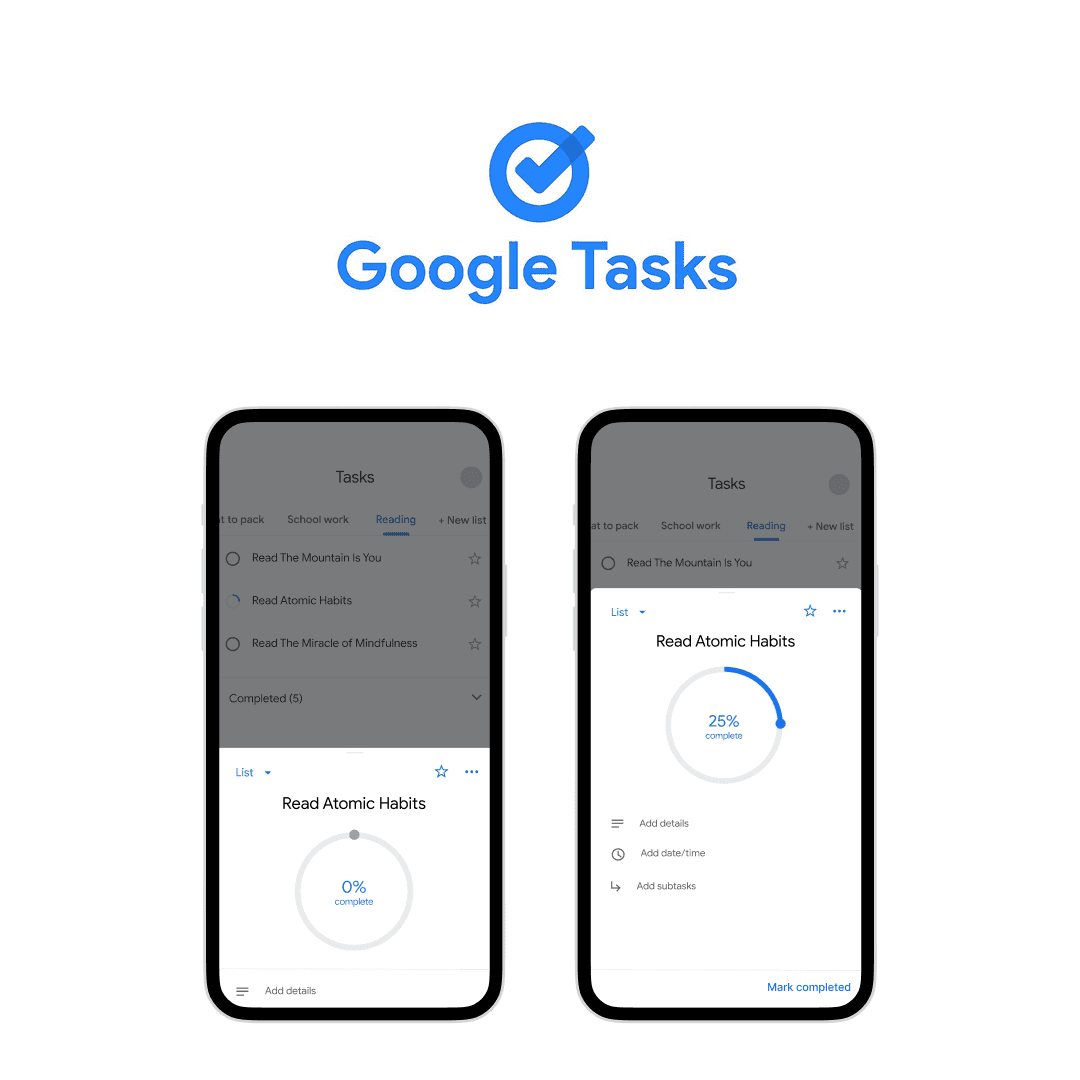
Case Study on…
I Forgot Again: Google Tasks
Progress tracking feature on Google Tasks
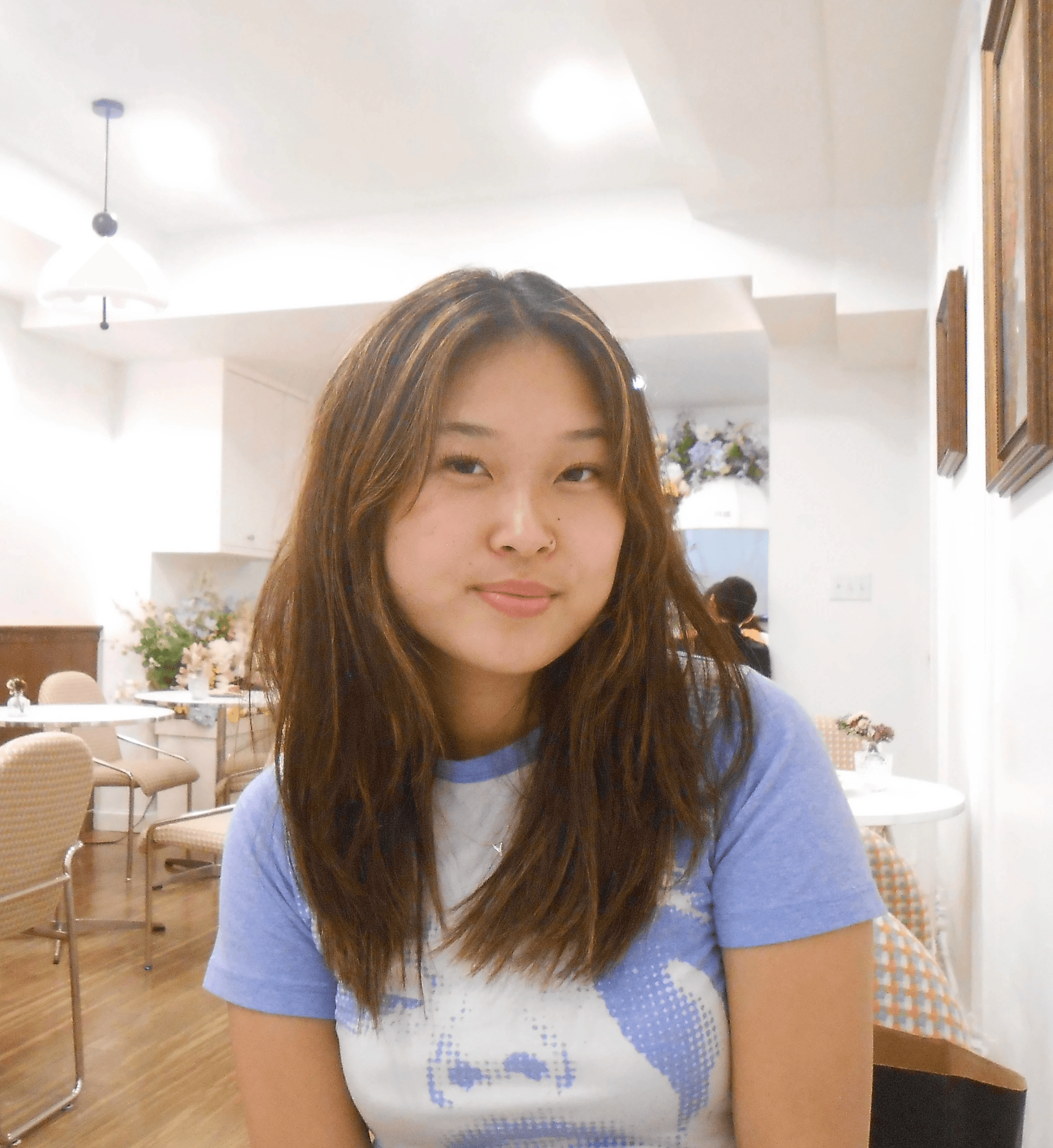
Meet Yoobin!
Busy college student
A ton of assignments and different things to do
100 random thoughts in mind/sec
has a bad memory
Hey! How have yoobin?☺️
So she started using Google Tasks 4 months ago for its simplicity, minimalism, and straightforward design.

Hit
Enter a task name (optionally adding a deadline or details)
Tap the task once to open details/edit it
Mark it as complete when done!
That’s all! How simple it is!
Current Flow
Oh, wait. It looks like you haven’t started any of your tasks.
Yes, I have! Don’t you worry.
Phew, I was scared for you. So which tasks have you started or how far along are you?
Oh… I forgot.
Every incomplete task appears the same: a gray circle. When I open the app, I feel overwhelmed seeing tasks that look untouched but have, in fact, already been started.
Is it just me?
I conducted interviews to better understand how others feel about Google Tasks. Here’s what I found:
Frustrations
lack of flexibility in task statuses
long-term task management.
What works
Users enjoy the sense of accomplishment when checking off tasks and staying organized.
Most users heavily integrate Google Calendar with Tasks but often ignore the “Add details” section.
Common habits
↓
People Problem
As a busy college student with a dynamic schedule, when I start a task that doesn’t get finished in one seating on Google Tasks, I want to be able to pick up where I left off and keep working on them. However, I can’t do that because:
1) I can only mark a task off as either complete or incomplete.
2) There’s no option to track or record partial progress.
What do similar platforms do?
Todoist
Offers progress tracking with subtasks but lacks simplicity.
Microsoft To do
Provides tagging and categorization but doesn’t emphasize progress.
More flexible but not optimized for task management.
Google Keep
Includes advanced task management features but has a steep learning curve.
Tick Tick
Brainstorming
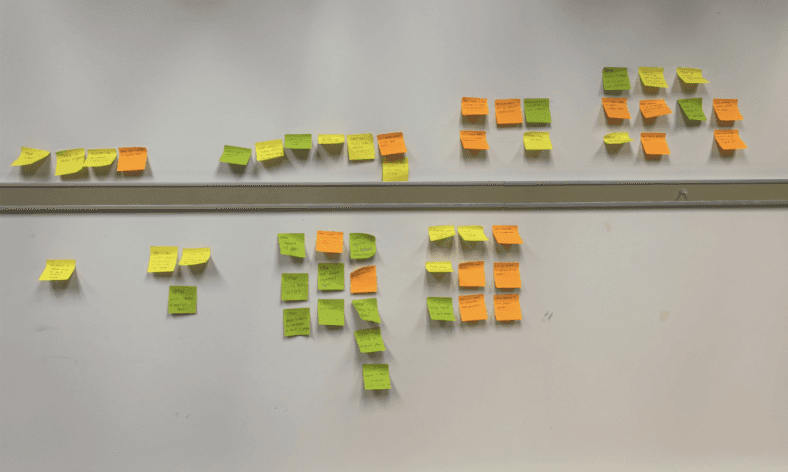
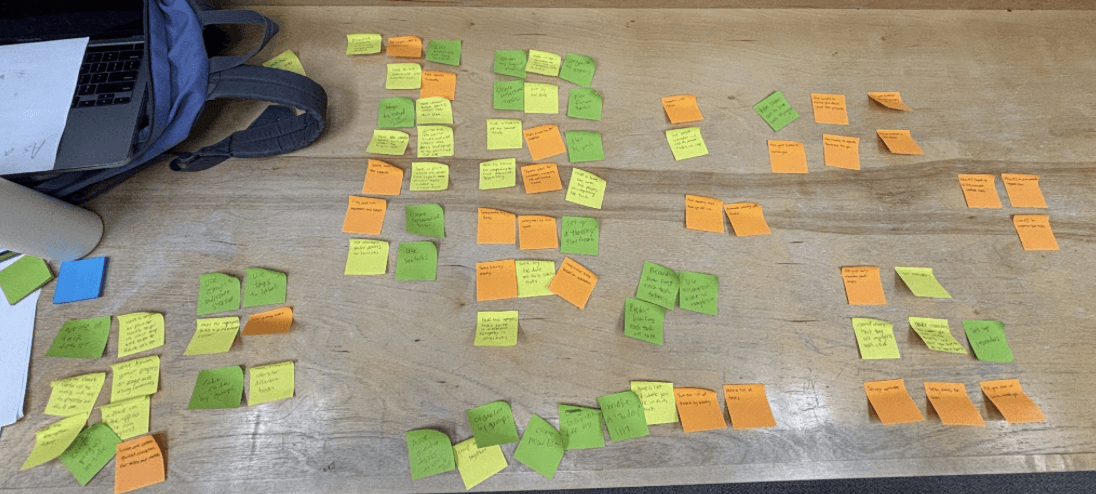
2 hours and 200+ sticky notes of brainstorming later with 3 folks
How might we
Organize tasks more effectively.
Simplify subtask management.
Make progress tracking more intuitive.
Feature Idea 1: Color Code & Tag Labels
Feature Idea 2: Unlocking Sequenetial Tasks
Feature Idea 3: Progress Bar
Mid-Fi Entry Point Explorations
Mid-Fi End Point Explorations
User Testing
I tested three midpoint flow prototypes with three user types:
Heavy User of Google Tasks.
Casual User familiar with task management apps.
Light/New User exploring task apps for the first time.
Users instinctively tap once to interact with tasks; dragging/sliding and double-tapping felt unintuitive.
Staying on the same page was preferred for efficiency.
Users found too many options overwhelming — Simplicity is key
Revisions
Single tap opens a progress update pop-up.
Display only essential options initially, with advanced features expandable.
Encourage use of the “Add details” section to record notes like “where to pick up next.”
Gray bar at the top hinting the users that it can be swiped up
Once set, users typically won’t need to update deadlines/add subtasks as often as they would update the task’s progress
Add details section - previously underutilized
Final Prototype!
Reflection
final case study on medium